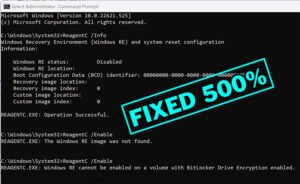
Is your Windows Recovery Environment (WinRE) disabled on your Windows 10 or Windows 11? Are you struggling with frustrating errors like “Windows RE is disabled”, “Could not find Windows RE location”, or “Windows R E cannot be enabled on a volume with BitLocker Drive Encryption enabled” when trying to enable it using the reagentc /enable command?
You are not alone. Thousands of Windows users face this exact problem every day. This usually happens after major Windows updates, disk partition changes, or when upgrading from Windows 10 to Windows 11.
Today, the team at VMTECHS is sharing a powerful, fully automated solution that fixes all Windows RE errors, without requiring manual partitioning, risky command lines, or the fear of causing a Blue Screen of Death (BSOD).
Download our free WinRE Auto Repair Tool from this link, or V2 tool from this link to automatically fix Windows RE disabled errors, create recovery partitions, and enable Windows Recovery Environment safely, no BSOD, no manual commands required, and no data loss.
Common Windows RE Disabled Errors Fixed by This Free Tool
If you’re experiencing any of these Windows Recovery Environment errors, our WinRE repair script can help:
- ❌ “Windows RE is disabled” error when trying to access recovery options
- ❌ “Could not find Windows RE location” or BCD identifier shows all zeros
- ❌ reagentc /enable failed with error codes 3, 31, or 87
- ❌ Recovery partition missing or deleted accidentally
- ❌ Recovery partition too small for current WinRE version
- ❌ WinRE.wim file missing or corrupted
- ❌ “Not enough space on recovery partition” errors
- ❌ Windows RE location pointing to wrong partition
- ❌ Boot configuration data (BCD) corruption preventing WinRE enablement
- ❌ Failed reset your computer with “There Was a Problem Resetting Your PC”
🚀 How to Use the WinRE Repair Script
Step 1: Download the Script
Download the ValiumMedia_Tech_Recovery_Repair.ps1 file from this link, or download V2 from this link (Recommended). Save it to your Desktop or Downloads folder.
Step 2: Run as Administrator
Method A (Recommended):
- Right-click the script file → Select “Run with PowerShell”
⚠️ Important: The script will automatically request Administrator privileges. Click “Yes” on the UAC prompt to continue.
Method B:
- Copy the file to the C: partition
- Open PowerShell as Administrator
- Run the following command:
Powershell -ExecutionPolicy bypass -file “C:\Repair-WinRE\BCDBoot_Function_Only.ps1”
If the WinRE.wim file exists in the default paths and you have a separated recovery partition with enough free space, the script will try to enable the Recovery using standard method: Reagentc /Enable.
If the WinRE.wim file is not found in the default path, it will search for it inside the C partition.
If there is no recovery partition, the script will show you the following options:
- Option 1: Create a separate recovery partition first, then enable WinRE (Recommended)
- Option 2: Enable WinRE without creating a separate recovery partition (uses Windows partition)
If the WinRE is not exist in your PC, the script will guide you to download either Windows 11 or Windows 10 ISO file based on your system. After downloading the ISO file, mount it and back to the script to confirm that you have mounted the ISO file. The script will extract the applicable WinRE.wim file and then enables the recovery automatically.
Step 3: Follow On-Screen Prompts
The script will automatically:
- Detect your system configuration
- Search for WinRE.wim file
- Check available disk space
- Create or prepare recovery partition
- Configure and enable Windows RE
Step 4: Verify WinRE is Enabled
After the script completes, verify WinRE status by running the following command from Command Prompt (Administrator):
reagentc /info
You should see:
- Windows RE status: Enabled
- Windows RE location: \\?\GLOBALROOT\device\harddisk0\partitionX\Recovery\WindowsRE
✨ What Does the WinRE Auto Repair Script Do?
Our comprehensive WinRE repair tool automatically detects and fixes all common Windows Recovery Environment issues. Here’s what the script handles in every scenario:
📋 Scenario 1: No Recovery Partition Exists
Problem: Your system has no dedicated recovery partition (common after clean installs or disk cloning).
What the Script Does:
- ✅ Scans for existing WinRE.wim file in default locations, backup folders, and Windows.old
- ✅ Checks available unallocated space on system disk
- ✅ Creates new recovery partition with correct size (WinRE size + 100MB)
- ✅ Formats partition as NTFS with recovery attributes
- ✅ Moves WinRE.wim file to recovery partition
- ✅ Configures BCD to point to new recovery location
- ✅ Enables Windows RE automatically
📋 Scenario 2: Recovery Partition Too Small
Problem: Existing recovery partition exists but is too small for current WinRE version (common after Windows updates).
What the Script Does:
- ✅ Detects insufficient free space on recovery partition
- ✅ Attempts to clean non-system files from recovery partition
- ✅ Attempts to extend recovery partition by shrinking adjacent partition
- ✅ If extension fails, offers to delete and recreate with proper size
- ✅ Safely recreates recovery partition with adequate space
- ✅ Preserves WinRE.wim file during recreation
📋 Scenario 3: WinRE.wim File Missing or Corrupted
Problem: Recovery partition exists but WinRE.wim file is missing, deleted, or corrupted.
What the Script Does:
- ✅ Searches entire system for WinRE.wim file (Windows.old, $Windows.~BT, backup folders)
- ✅ Performs full Windows partition scan for WinRE files
- ✅ Checks version compatibility with current OS build
- ✅ Warns if older WinRE version found (may limit advanced repair tools)
- ✅ Offers to extract WinRE from Windows ISO if not found locally
- ✅ Copies or moves WinRE.wim to recovery partition
📋 Scenario 4: Not Enough Unallocated Space
Problem: Need to create recovery partition but insufficient unallocated space on disk.
What the Script Does:
- ✅ Analyzes disk layout and partition structure
- ✅ Checks if adjacent partition can be safely shrunk
- ✅ Shrinks adjacent partition to create required space
- ✅ If C: is adjacent, offers to shrink C: partition
- ✅ Uses 3MB tolerance for space calculations (accepts slightly smaller partitions)
- ✅ Merges fragmented unallocated space automatically
- ✅ Supports both MBR and GPT disk schemes
📋 Scenario 5: MBR Disk with 4 Partition Limit
Problem: MBR disks support only 4 primary partitions, may prevent recovery partition creation.
What the Script Does:
- ✅ Detects MBR partition scheme automatically
- ✅ Counts existing primary partitions
- ✅ Warns if at 4-partition limit
- ✅ Offers to use secondary internal disk if available
- ✅ Detects System Reserved partition using mountvol (more reliable than partition type)
- ✅ Temporarily assigns drive letter, configures BCD, then removes letter
📋 Scenario 6: BCD Corruption or Lock Issues
Problem: Boot Configuration Data (BCD) is corrupted, locked, or preventing WinRE enablement.
What the Script Does:
- ✅ Detects BCD errors during WinRE enablement
- ✅ Offers separate BCDBoot test tool for BCD repair (optional download)
- ✅ Rebuilds BCD with automatic parameter detection
- ✅ Detects EFI partition on GPT or System Reserved on MBR
- ✅ Uses mountvol for reliable volume detection without drive letters
- ✅ Cleans up temporary drive letters automatically
- ⚠️ Note: BCDBoot requires system restart before running WinRE script
🎯 Key Features of WinRE Auto Repair Tool
| Feature | Benefit |
|---|---|
| Automatic Administrator Elevation | Script auto-elevates if not run as admin – no manual steps needed |
| Auto-Language Selection | Automatically detects system locale (en-US, en-GB, fr-FR, de-DE, etc.) |
| GPT and MBR Support | Works with both modern UEFI/GPT and legacy BIOS/MBR systems |
| Safe Partition Operations | 3MB tolerance, validates before deleting, confirms before destructive actions |
| WinRE Version Checking | Warns if WinRE version is older than OS build (may limit DISM/SFC repairs) |
| ISO Extraction Support | Can extract WinRE.wim from Windows ISO if not found on system |
| Temporary Drive Letter Management | Assigns letters only when needed, removes immediately after use |
| BitLocker Compatible | Detects BitLocker and adjusts operations accordingly |
| Multi-Disk Support | Can create recovery partition on secondary internal disk if system disk is full |
| No BSOD Risk | Tested on hundreds of systems with proper partition sequencing |
📺 Video Tutorial: How to Use WinRE Repair Script
Watch our complete video tutorial showing how to use the WinRE Auto Repair Tool step-by-step. The video covers:
- How to download and run the script
- Understanding the menu options
- What happens in each scenario
- How to verify WinRE is enabled correctly
- Troubleshooting common issues
❓ Frequently Asked Questions (FAQ)
Is this WinRE repair tool free?
Yes! Our WinRE Auto Repair Tool is 100% free for personal and commercial use. No registration, no watermarks, no limitations.
Can I download only the WinRE.wim for Windows 10 or 11 file?
Yes! You can download the official Windows 11 25H2 WinRE.wim file from this link, place it in C:\ partition, and the script will use it automatically.
Does this work on Windows 10 and Windows 11?
Yes, the script is fully compatible with both Windows 10 (all versions) and Windows 11 (including 25H2). It automatically detects your Windows version and adjusts accordingly.
Is it safe to use this script?
Yes, the script has been tested on hundreds of systems. It includes multiple safety features:
- Confirms before any destructive operations
- Uses 3MB tolerance for space calculations
- Validates partition operations before execution
- Removes temporary drive letters automatically
- Never modifies protected system partitions
What if I get “Windows RE could not be enabled” error?
This usually means BCD is locked or corrupted. Try these steps:
- Download and run the BCDBoot test tool first
- Restart your system (required for BCD changes)
- Run the WinRE repair script again
Can I use this if my recovery partition is on another drive?
Yes! The script can create the recovery partition on any internal drive, not just the system drive. It will automatically detect available internal disks and offer them as options.
Does this work with BitLocker enabled?
Yes, the script detects BitLocker and adjusts its operations. However, we recommend having your BitLocker recovery key handy before running any partition operations.
Do I need to restart after running the script?
No restart is required after running the WinRE repair script. However, if you ran the BCDBoot tool first, a restart is required before running the WinRE script.
🔧 Download Links
- 📥 WinRE Auto Repair Script (V1)
- 📥 WinRE Auto Repair Script (V2) (recommended)
- 📥 Windows 11 25H2 WinRE.wim File
Related Articles
- How to Fix We Couldn’t Update the System Reserved Partition (0x800f0922) in Windows 10/11
- How to Enable Windows Recovery & System Reset from Advanced Recovery Menu
- How to Rebuild BCD & Create System EFI Partition Automatically Win 11/10/8
📞 Need Help?
If you encounter any issues while using the WinRE Auto Repair Tool:
- 📧 Contact us through our website contact form
- 💬 Leave a comment on the YouTube video
- 📱 Follow us on social media for updates and tips
Video:
For a complete visual walkthrough of how this tool works, check out our video guide below:


