Hey there!
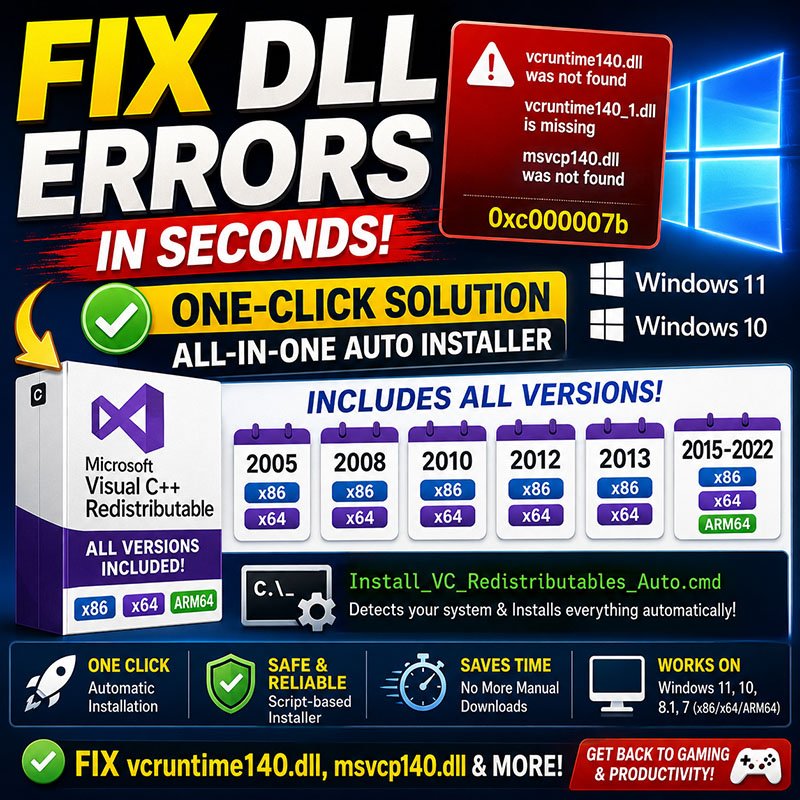
If you’re staring at a frustrating error like “vcruntime140.dll was not found, vcruntime140_1.dll is missing”, “msvcp140.dll was not found,” or “vcruntime140_1.dll not found” when trying to launch a game or app on Windows 10 or 11, you’re definitely not alone. These pesky DLL runtime errors (including the dreaded 0xc000007b code) pop up all the time, especially with modern games, Adobe software, or other apps that rely on Microsoft Visual C++ Redistributables.
The good news? There’s a super-fast, one-click solution that fixes everything without hours of manual downloads and troubleshooting. In this guide, we’ll break down exactly why this happens and walk you through the easiest fix using a powerful all-in-one auto-installer. Whether you’re on Windows 11, Windows 10, or even older versions, you’ll be up and running in minutes.
Why Do These DLL Errors Happen?
Your PC needs specific runtime files from Microsoft’s Visual C++ Redistributable packages to run many programs smoothly. When these files are missing, corrupted, or not properly installed (common after Windows updates, clean installs, or game installations), apps simply refuse to start.
Common culprits include:
- Incomplete or failed Visual C++ installations
- Conflicts between 32-bit and 64-bit versions
- Missing support for newer architectures like ARM64
- Outdated packages that don’t include the latest 2026 updates
Manually downloading individual packages from Microsoft can work, but it’s time-consuming, error-prone, and often leaves you guessing which versions you need.
The Ultimate One-Click Fix: Visual C++ Redistributable All-in-One Auto Installer
Instead of wrestling with multiple downloads, use this custom One-Click Visual C++ Redistributable All-in-One Auto Installer. It includes every essential version for x86, x64, and ARM64 systems, complete with the latest updates as of 2026.
This custom tool bundles every required version (x86, x64, and ARM64) with the latest 2026 updates. The downloaded ZIP file contains the following:
- Automatic Visual C++ Redistributables Installer Script:
Install_VC_Redistributables_Auto.cmd - Microsoft Visual C++ 2005 Redistributable (64-bit) —
vcredist-2005_x64.exe - Microsoft Visual C++ 2005 Redistributable (32-bit / x86) —
vcredist-2005_x86.exe - Microsoft Visual C++ 2008 Redistributable (64-bit) —
vcredist-2008_x64.exe - Microsoft Visual C++ 2008 Redistributable (32-bit / x86) —
vcredist-2008_x86.exe - Microsoft Visual C++ 2010 Redistributable (64-bit) —
vcredist-2010_x64.exe - Microsoft Visual C++ 2010 Redistributable (32-bit / x86) —
vcredist-2010_x86.exe - Microsoft Visual C++ 2012 Redistributable (64-bit) —
vcredist-2012_x64.exe - Microsoft Visual C++ 2012 Redistributable (32-bit / x86) —
vcredist-2012_x86.exe - Microsoft Visual C++ 2013 Redistributable (64-bit) —
vcredist-2013_x64.exe - Microsoft Visual C++ 2013 Redistributable (32-bit / x86) —
vcredist-2013_x86.exe - Microsoft Visual C++ 2015–2022 Redistributable (ARM64) —
vcredist-2015_2017_2019_2022.arm64.exe - Microsoft Visual C++ 2015–2022 Redistributable (64-bit) —
vcredist-2015_2017_2019_2022_x64.exe - Microsoft Visual C++ 2015–2022 Redistributable (32-bit / x86) —
vcredist-2015_2017_2019_2022_x86.exe
Download the installer here:
https://drive.google.com/file/d/151-w3AYM2EnJ475aR9lZbDMAgsdUGsLK
This tool automatically detects your system architecture and installs everything you need in one go, no more hunting for specific files like vcruntime140.dll, vcruntime140_1.dll, or msvcp140.dll.
Step-by-Step: How to Fix the Errors in Seconds
- Download the ValiumMedia_Tech_Visual_C++_Redistributable_All_in_One.zip file (it’s a ZIP containing the auto-installer script and all visual C++ Redistributable packages).
- Extract the ZIP to a convenient location on your PC (e.g., your Desktop).
- Run as Administrator: Right-click the file named
Install_VC_Redistributables_Auto.cmdand select “Run as administrator.” - Let it do its magic: The script will detect whether you need 32-bit, 64-bit, or ARM64 packages and install them automatically.
- Restart if prompted: Type “Y” and press Enter when asked to reboot. This ensures all changes take effect.
- Test your app or game: Launch the program that was giving you trouble, it should now work perfectly!
That’s it! No complicated commands or manual file placements required.
Why This Auto-Installer Beats Manual Methods
- Comprehensive coverage: Bundles all Visual C++ versions from older releases up to the newest 2026 builds.
- Smart detection: Handles x86, x64, and ARM64 automatically.
- On 64-bit systems (the vast majority of Windows 10/11 PCs), the tool automatically installs both 32-bit and 64-bit packages. This follows Microsoft’s official recommendation because many games and applications are still 32-bit and will fail without the 32-bit runtimes.
- Time-saving: One click instead of downloading 10+ separate packages.
- Safe & reliable: Script-based approach minimizes human error.
Pro tip: Always create a quick System Restore point before running any installer, just for peace of mind.
Quick Verification After Installation
After restarting, try launching your game or app again. If the error persists (rare), double-check that you ran the script as administrator and consider running a quick Windows Update or SFC or DISM scan (in an admin Command Prompt).
Common Questions About vcruntime140.dll & Similar Errors
Q: Will this work on Windows 11?
A: Absolutely, it’s fully compatible with Windows 11, Windows 10, and even Windows 8/7.
Q: Is it safe to download from Google Drive?
A: Yes, this is the official installer shared in the video tutorial. Scan it with your antivirus if you prefer. All packages downloaded from the official Microsoft website WITHOUT ANY MODIFICATION.
Q: Do I need to uninstall old Visual C++ packages first?
A: No, the installer handles everything cleanly.
Q: What if I have an ARM64 device (like some Surface or Snapdragon laptops)?
A: The tool automatically installs the correct ARM64 packages.
Final Thoughts
Those annoying “DLL not found” errors don’t have to ruin your gaming or productivity sessions. With this simple one-click Visual C++ Redistributable auto-installer, you can fix vcruntime140.dll, msvcp140.dll, vcruntime140_1.dll, and related issues instantly on Windows 10/11.
If this guide helped you, feel free to share your success story in the comments! For more Windows troubleshooting tips, check out other articles on vmtechs.com.
Video Tutorial
Watch this quick step-by-step video to see exactly how to fix vcruntime140.dll, msvcp140.dll, and vcruntime140_1.dll errors using the one-click installer:


Hello
I am trying to install C++ 2005 using your all in one package. I have uninstalled all newer versions hoping this will help.
I am trying to install Microsoft Encarta Encyclopedia 2008, which requires C++2005, in Windows 11 pro version 24h2.
I get the following message when trying to install C++2005 vcredist2005_x64 or x86
error 1935 Microsoft VC80 AYLtype=”win32″.version=8 0 50727.6195″ .publicKey Token=”1fx8b3b9a1e18e3b” .process/architecture =”amd64″
All other C++ installed correctly.
Can you help?
This is normal because your system architecture is not= amd64.
Try to run these commands:
SFC /ScanNow
and
DISM /Online /Cleanup-Image /RestoreHealth
Thank you but your package doesn’t give me any other alternative for C++ 2005.
You are welcome!
The package contains 2005 versions too:
Microsoft Visual C++ 2005 Redistributable (64-bit) — vcredist-2005_x64.exe
Microsoft Visual C++ 2005 Redistributable (32-bit / x86) — vcredist-2005_x86.exe
I get the same message when I try to install the encyclopdia, any idea why?
error 1935 Microsoft VC80 AYLtype=”win32″.version=8 0 50727.6195″ .publicKey Token=”1fx8b3b9a1e18e3b” .process/architecture =”x86″