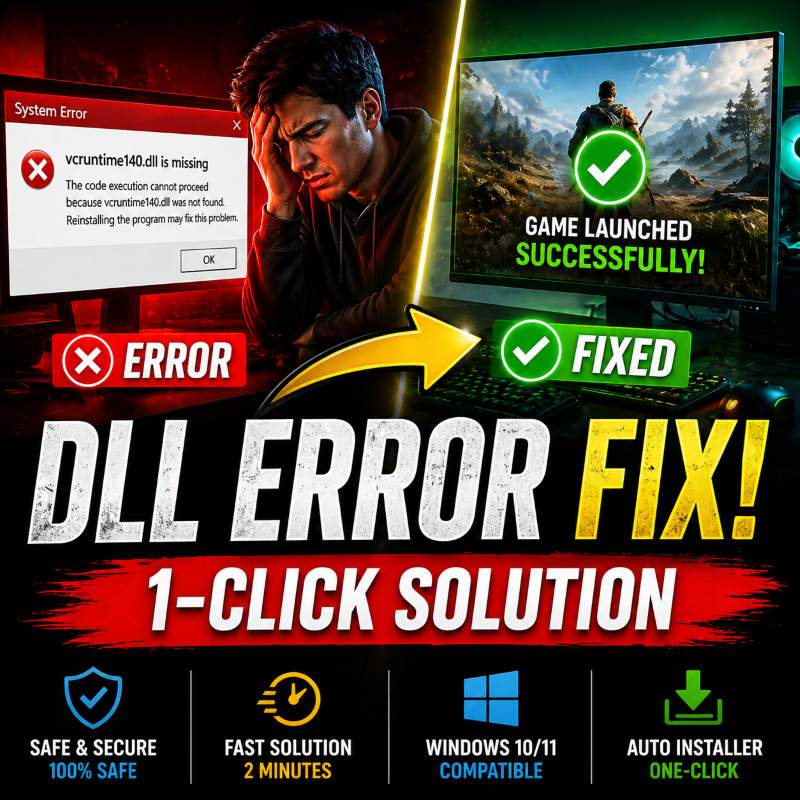
Are you seeing error messages like “vcruntime140.dll is missing,” “msvcp140.dll was not found,” or “0xc000007b” when trying to launch games or applications? You’re not alone. These DLL runtime errors occur when your system lacks the required Microsoft Visual C++ Redistributable Package that the application depends on.
Whether you’re dealing with Windows 10 or Windows 11, this comprehensive guide will walk you through three effective methods to resolve these issues, starting with the easiest automated solution.
What Causes the “vcruntime140.dll” Error?
The vcruntime140.dll and msvcp140.dll files are part of Microsoft’s Visual C++ Redistributable libraries. When a game or application built with Visual Studio requires these files but your computer doesn’t have the corresponding package installed, Windows throws a runtime error (commonly 0xc000007b), preventing the program from launching.
This typically happens after:
- Uninstalling previous versions of Visual C++ redistributables
- Installing new applications that require updated runtime libraries
- System updates that removed necessary components
Method 1: Repair the Problematic Application
Before installing new packages, try repairing the application that’s throwing the error. This often resolves DLL conflicts without requiring a full uninstall/reinstall.
Steps to repair:
- Press
Windows + Rto open the Run dialog - Type
appwiz.cpland press Enter to open Programs and Features - Locate the problematic application or game
- Click “Change” or “Repair” if available
- Follow the repair wizard
Note: If the Repair option isn’t available, proceed to reinstallation or download the specific Visual C++ package.
Method 2: Manual Installation of Visual C++ Redistributable
If repair doesn’t work, download the specific Visual C++ Redistributable package from Microsoft’s official website. You’ll need to match the architecture of your system:
System Requirements:
- x86 (32-bit) computers: Download the x86 package
- x64 (64-bit) computers: Download both x86 and x64 packages
- ARM64 systems: Download the appropriate ARM64 versions
Download the latest supported versions from Microsoft:
👉 Latest Visual C++ Redistributable Downloads
This method requires technical knowledge to identify which version matches your application, as different games and software use different Visual Studio versions (VS 2015, VS 2017, VS 2019, etc.).
Method 3: One-Click All-In-One Auto Installer (Recommended)
For users who want a fast, safe, and foolproof solution without determining which specific Visual C++ version to download, the One-Click All-In-One Auto Installer is your best choice. This automated script handles everything for you.
Step-by-Step Installation Guide:
Step 1: Download the Auto Installer
Download the “ValiumMedia_Tech_Visual_C++_Redistributable_All_in_One.zip” file from this direct link: 👉 Download VC++ Auto Installer
Step 2: Extract the Files
Extract the downloaded ZIP file to a folder on your computer (e.g., Desktop or Downloads).
Step 3: Run the Installation Script
Navigate to the extracted folder and double-click Install_VC_Redistributables_Auto.cmd
What the Auto Installer Does:
- Automatically detects your computer’s architecture (x86, x64, or ARM64)
- Installs only the applicable Visual C++ Redistributable packages
- Includes the latest 2026 updates and all previous compatible versions
- Prevents duplicate installations and conflicts
Note: The installer contains complete packages for all system architectures, ensuring compatibility with legacy and modern applications alike.
Video Tutorial
🔴 For a visual walkthrough of these steps, watch our detailed tutorial below:
This video demonstrates the complete process from error identification to successful application launch using the one-click installer.
Which Method Should You Choose?
| Method | Difficulty | Time Required | Best For |
|---|---|---|---|
| Manual Repair | Medium | 5 minutes | Users comfortable with Windows settings |
| Manual Download | High | 10+ minutes | Developers or users who need specific versions |
| One-Click Auto Installer | Very Low | 2 minutes | Beginners and non-technical users |
Recommendation: For 99% of users, Method 3 (One-Click Auto Installer) provides the fastest and safest solution, eliminating the guesswork involved in identifying the correct Visual C++ version.
Preventing Future DLL Errors
To avoid similar issues with applications like Steam, Epic Games, or other games:
- Always update your graphics card drivers
- Run Windows’ built-in Disk Cleanup tool regularly
- Keep your system updated with the latest Microsoft updates
- Consider using system repair tools like System File Checker (SFC) and DISM for proactive maintenance
Conclusion
The “vcruntime140.dll is missing” error is frustrating but easily resolved. While manual methods work, the One-Click All-In-One Auto Installer offers the most convenient solution for Windows 10 and 11 users of all technical skill levels.
Ready to get your games and applications running smoothly? Download the auto installer now and eliminate DLL runtime errors in seconds!
Have questions about the installation? Check our video tutorial above or add a comment below for personalized assistance.


