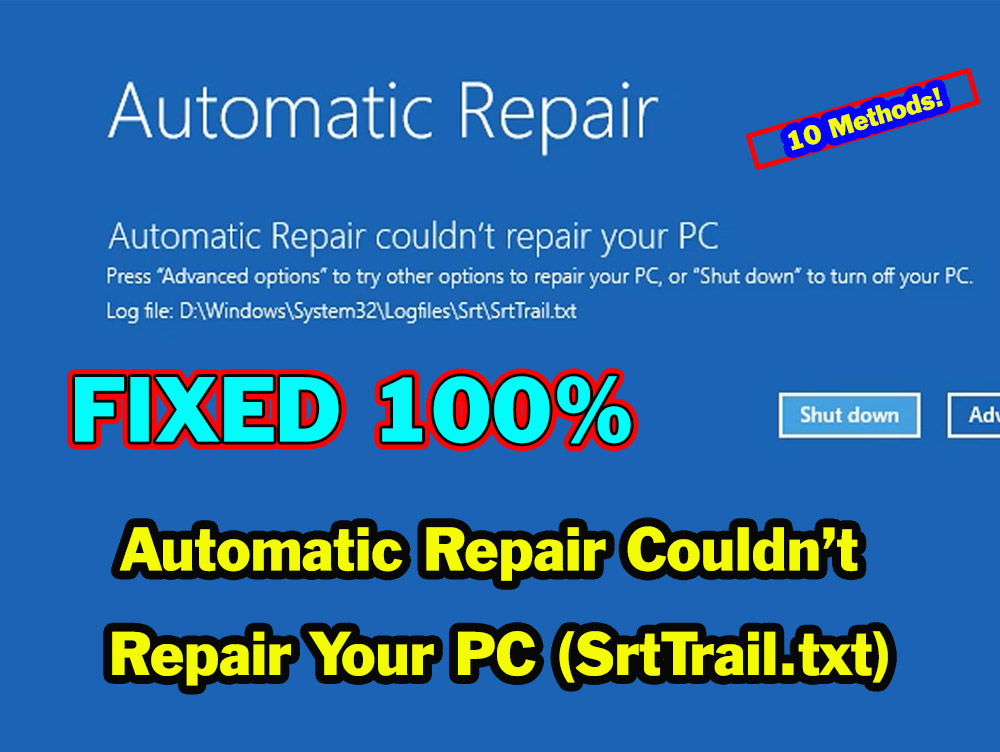
In this topic, I will show you how to fix blue screen error of Startup Repair Tool with this error message, “Startup or Automatic Repair couldn’t repair your PC”
Log file C:\WINDOWS\SYSTEM32\LOGFILES\SRT\SRTTRAIL.TXT
This error message is generated when the Startup Repair tool fails to fix the issues that prevent your computer from booting normally, and is associated with others blue screen errors, such as:
MACHINE CHECK EXCEPTION BSOD with error code: 0x0000009C.
There are many sources that can lead to this problem, hence It’s too hard to show you only one solution for all of them, so I will show you how to determine the exact error source in order to select the most applicable solution from the suggested methods on this topic.
Part 1: How to Identify the Error Source?
Using the SrtTRail.txt Report:
To open SrtTRail.txt log file, do the followings:
- Memorize the first letter in the log file path in your computer, which is the letter of windows partition.
- From startup repair blue screen, click on Advanced options then select Troubleshoot option
- Open command prompt
- Type Notepad followed by the path of SrtTrail.txt log file as shown on the Blue screen error
- As you can see in the video later, the path to was D:\WINDOWS\SYSTEM32\LOGFILES\SRT\SRT, so I executed the following command to open it:
- NOTEPAD D:\WINDOWS\SYSTEM32\LOGFILES\SRT\SRTTRAIL.TXT
- The 0x0 codes indicate that there is no error found on the test performed.
- NOTEPAD D:\WINDOWS\SYSTEM32\LOGFILES\SRT\SRTTRAIL.TXT
- As you can see in the video later, the path to was D:\WINDOWS\SYSTEM32\LOGFILES\SRT\SRT, so I executed the following command to open it:
- Scroll down until you see the Root cause found section.
- As you can see in the video below, the error cause in my PC says that “NO OS FILE FOUND ON DISK”, with error code =0x20, with REPAIR ACTION: PARTITION TABLE REPAIR as suggested by the Startup Repair Tool.
Using the Memory Dumb File:
If the computer restarted to this error code while using it, use the BlueScreenView tool to open memory dumb file and identify the error source as following:
- Download the BlueScreenView.exe tool from this link using your mobile or another computer, then copy it into a USB pen drive.
- Connect the USB drive to your computer.
- Open Command Prompt, type Notepad and hit Enter
- Press Ctrl + O keys from keyboard to open Files Explorer.
- Click on This PC icon and then open the USB drive.
- Change File of Types option to All in opened File Explorer window
- Right-click on the BlueScreenView file and select, Run as Administrator option
- Click on Options tab and open Advanced options
- Replace the X with the letter of your Windows partition then click OK.
- As you can see on the video, the MiniDumb is available in my PC with this error code: 0xc00002e3, which indicates a corruption of boot configuration data.
Recall the Recent Changes:
If the SrtTRail.txt didn’t determine the error source, try to remember the last changes you have made on your computer before appearance of the blue screen error. This can help you choosing the appropriate solution easily.For example:
- If the problem is related to the latest Windows update, delete that update to fix your problem.
- If the problem occurs after installing a driver or app, delete that installation by booting the computer in safe mode or using Driver manager view tool.
- If the problem occurs after any modification in the system settings, return those settings to what they were in to solve the problem.
- If the problem occurs after deleting a file, replace that file from a bootable USB of Windows installation or from backup files.
Part 2: How to Identify EFI or System Reserved, Windows or Boot, and Recovery Partitions:
- Step 1: Open the Command Prompt
- Step 2: Launch DiskPart
- Type the following commands one by one, pressing Enter after each:
diskpartlist disk- Identify which disk is your primary drive (usually Disk 0). If you have multiple disks, look at the size to determine which one holds Windows.
select disk 0(Replace '0' with your actual disk number)
list partitionlist volume
- Type the following commands one by one, pressing Enter after each:
- Step 3: Identify the Partitions
- Use the
list volumeandlist partitionoutput to identify the specific roles:- 1. The EFI Partition (UEFI/GPT systems)
- Label/Name: Usually labeled
SYSTEMorESP. - File System: Always FAT32.
- Size: Typically small, between 100 MB and 500 MB.
- Info column: Often marked as
SystemorHidden. - Note: Windows cannot boot without this partition on UEFI systems.
- Label/Name: Usually labeled
- 2. The System Reserved Partition (Legacy BIOS/MBR systems)
- Label/Name:
System Reserved. - File System: NTFS.
- Size: Typically 100 MB, 350 MB, or 500 MB.
- Info column: Marked as
Active.
- Label/Name:
- 3. The Windows Boot Partition (The OS)
- Label/Name: Usually labeled
WindowsorOS. - File System: NTFS.
- Size: This will be your largest partition (GBs).
- Key Identification: Look at the Ltr (Letter) column. While it is usually
C:in Windows, it often shifts toD:orE:in WinRE. To verify, typeexit(to leave DiskPart) and typedir D:to see if the “Windows” and “Program Files” folders are present.
- Label/Name: Usually labeled
- 4. The Recovery Partition
- Label/Name:
RecoveryorWINRE. - File System: NTFS.
- Size: Usually between 450 MB and 1 GB (though OEM recovery images from Dell/HP can be 10 GB+).
- Type/Info: In
list partition, it will be explicitly listed as Type:Recovery.
- Label/Name:
- 1. The EFI Partition (UEFI/GPT systems)
- Use the
Summary Checklist
- To be 100% sure, look for these specific combinations:
| Partition Type | File System | Typical Size | Common WinRE “Info” |
| EFI (GPT) | FAT32 | 100-500 MB | System / Hidden |
| System Reserved (MBR) | NTFS | 50-100 MB | Active |
| Windows (OS) | NTFS | Large (GB) | Boot (or no label) |
| Recovery | NTFS | 500 MB – 1 GB | Hidden / Recovery |
Part 3: The Solutions:
Now, let’s see all methods used to fix this issue.
1. REBUIDL THE BCD:
- If the root cause or the associated blue screen indicate that the Boot Configuration Data file is corrupted, rebuild the BCD file using one of the following methods:
- 1.1. Rebuild the BCD file using BCDBOOT tool:
- Execute this command to rebuild BCD:
- BCDBOOT C:\WINDOWS
- Replace the C with the letter of your windows partition.
- BCDBOOT C:\WINDOWS
- Execute this command to rebuild BCD:
- 1.2. If the previous method failed, rebuild BCD using the Bootrec commands:
- Bootrec /FixBoot
- Bootrec /FixMBR
- Bootrec /RebuildBCD
- Restart Your computer to see if the error fixed or not.
- 1.1. Rebuild the BCD file using BCDBOOT tool:
If the error source is related to BCD but you still have an issue after applying both previous methods, read this topic to learn how to rebuild the BCD file from scratch.
2. REPAIRING BAD DISK SECTORS:
If the error source is related to bad disk sector, use check disk tool to check and repair bad sectors by executing the following command:
CHKDSK /F /R /X C:
Replace the C with the letter of your windows partition.
3- RESTORING SYSTEM HEALTH USING DISM TOOL:
- 3.a. Execute the following 2 commands to check if the system is healthy, repairable, or non-repairable:
- Dism /Image:C:\ /Cleanup-Image /ScankHealth
- Dism /Image:C:\ /Cleanup-Image /CheckHealth
- 3.b. Execute this command to restore system health:
- Dism /Image:C:\ /Cleanup-Image /RestoreHealth
- Replace the C with the letter of your windows partition.
- 3.C. If you are booting into Advanced Recovery from windows installation media like bootable USB, execute this Command to restore system health using that bootable media as a repairing source:
- DISM /Image:C:\ /Cleanup-Image /RestoreHealth /Source:wim:H:\sources\install.wim:1 /LimitAccess
- Replace the C with your windows partition and the H with the USB or DVD drive.
4. Repairing system files using system files checker (SFC) tool:
Important notes:
- If you are trying to fix Windows 10 or Windows 8, first run the DISM tool before running SFC tool using Installation media as the repair source as on step number 3.C.
- If you are running Windows 7 or Windows Vista, run the SFC directly.
- 4.1. Type BCDEDIT and press Enter to identify the boot and windows partitions.
- 4.2. Execute this command to check and repair system files:
- SFC /SCANNOW /OFFBOOTDIR=F: /OFFWINDIR=C:\WINDOWS
- Replace the C with your windows partition and the F with the EFI or System Reserved Partition.
- 4.3. The process will take longer time, so be patient and don’t close the CMD window or power off your PC.
- 4.4. What you will see after executing the previous prompt:
- If there is no any missing or corrupted system file, you will see this message:
- Windows Resource Protection did not find any integrity violations.
- If there is a corrupted file in your system, the tool will replace that file from the system files backup in the Winsxs folder, and you will get this message:
- Windows Resource Protection found corrupt files and successfully repaired them.
- But if the winSxs folder or its files are missing or corrupted, you will see the following message:
- “Windows Resource Protection could not perform the requested operation”
- In this case, you have to replace corrupted files manually as on the next method.
- “Windows Resource Protection could not perform the requested operation”
- If there is no any missing or corrupted system file, you will see this message:
5. REPLACING OR REMOVING THE CORRUPTED FILE MANUALLY:
5.1. Replacing the corrupted or missing file locally from Windows folder:
- To replace or remove the corrupted file manually from your computer, do the followings:
- Open SFC log file to determine the corrupted file using this command:
- NOTEPAD D:\WINDOWS\Logs\CBS\CBS.log
- Determine the corrupted file that detected by the tool from the last check according to checking date and time.
- Also you can open Srttrail log file to determine the corrupted or missed file using this command:
- NOTEPAD D:\WINDOWS\SYSTEM32\LOGFILES\SRT\SRTTRAIL.TXT
- As you can see in the video below, the corrupted file is Hal.dll in my system.
- NOTEPAD D:\WINDOWS\SYSTEM32\LOGFILES\SRT\SRTTRAIL.TXT
- Search for the corrupted file inside windows folder to see if there is a backup copy using this command:
- DIR /S /A D:\WINDOWS\HAL.DLL
- As you can see in the video, there is a backup file inside WinSxS folder in my system, which is approximately close in size to the corrupted file.
- DIR /S /A D:\WINDOWS\HAL.DLL
- Take administrative ownership and full access of the corrupted file using these commands:
- TAKEOWN /F D:\WINDOWS\SYSTEM32\HAL.DLL
- ICACLS D:\WINDOWS\SYSTEM32\HAL.DLL /GRANT ADMINISTRATORS:F
- If the file is missing, the previous 2 commands are not required.
- Now, replace the corrupted file using these commands:
- Ren D:\WINDOWS\SYSTEM32\HAL.DLL HAL.DLL.old
- XCOPY /H D:\WINDOWS\WINSXS\ D:\WINDOWS\SYSTEM32\
- If there are many files available, copy the one with similar or close size to the corrupted file.
- Open SFC log file to determine the corrupted file using this command:
5.2. Replacing the corrupted or missing file from Windows Installation Media:
If there is no backup file for the corrupted file in your computer, use a windows installation media like USB drive or ISO file of applicable Windows to replace it as followings:
- Connect a bootable USB or mount the ISO file to your computer. See how to create a bootable USB from this topic.
- Take administrative ownership and full access of the corrupted system file using these commands:
- TAKEOWN /F D:\WINDOWS\SYSTEM32\HAL.DLL
- ICACLS D:\WINDOWS\SYSTEM32\HAL.DLL /GRANT ADMINISTRATORS:F
- Execute these commands to show the letters of all volumes:
- DISKPART
- LIST VOL
- In my computer, the H is the letter of the bootable USB drive as you can see later in the video.
- Type EXIT and press Enter to close Diskpart.
- Create new folder using this command:
- MD D:\MOUNT
- Mount the first index of the windows installation using this command:
- DISM /MOUNT-IMAGE /IMAGEFILE:H:\SOURCES\INSTALL.WIM /INDEX:1 /MOUNTDIR:D:\MOUNT /READONLY
- Replace the H with the letter of the USB drive or the mounted ISO file in your computer.
- DISM /MOUNT-IMAGE /IMAGEFILE:H:\SOURCES\INSTALL.WIM /INDEX:1 /MOUNTDIR:D:\MOUNT /READONLY
- Rename the corrupted file using this command:
- Ren D:\WINDOWS\SYSTEM32\HAL.DLL HAL.DLL.old
- Copy the required file from mounted folder using this command:
- XCOPY /H D:\MOUNT\WINDOWS\SYSTEM32\HAL.DLL D:\WINDOWS\SYSTEM32\HAL.DLL
- Execute this command to remove the mounted image:
- RMDIR D:\MOUNT /S
6- FIXING THE ISSUE BY CHANGING STARTUP BEHAVIOR:
- To change startup behavior or to boot into safe mode, do the followings:
- 6.1. Click on Troubleshoot then click on Advanced options
- 6.2. Select Startup Settings option, then click on Restart
- 6.3. Try the last three options one by one, by pressing the corresponding F or number key from keyboard.
- You can try only one option if you think the issue is related to that option.
- For example, if you think the issue is related to antimalware app, so you can disable Early Launch Anti-malware protection by pressing the F8 key from keyboard.
- You can try only one option if you think the issue is related to that option.
- 6.4. If all three options didn’t help, try to boot into safe mode with networking by pressing the F6 key.
- 6.5. Once the computer booted into Safe mode, you can try many options to fix your issue according to changes you have made in your system before appearance of your problem.
- For example, if you think the issue is related to the latest windows update or software installation, open programs and features panel then uninstall that update or installation.
- Removing latest windows update could fix the issue, because some new updates may lead to such issue, especially in older computers when using newer operating system.
- For example, if you think the issue is related to the latest windows update or software installation, open programs and features panel then uninstall that update or installation.
- 6.7. If you think the issue is related to driver installation, open Device manager and remove the installed driver update or disable that driver.
- 6.8. Also if you have an internet connection, you can try to update the Graphic or another driver if you think that driver is the source of issue.
- 6.9. If you think the error source is related to a virus or malware, scan your PC using Windows Security or another antivirus app.
7. Uninstalling the latest Windows update or package:
8. uninstalling latest driver or disabling corrupted device:
- 8.1. Download Device manager view tool in your mobile from this link.
- 8.2. Extract the tool into your mobile, then copy it to the USB drive.
- 8.3. Connect the USB drive to your computer
- 8.4. Type NOTEPAD and press Enter
- 8.5. Click on File tab then select Open option
- 8.6. Click on This PC icon then open the USB drive
- 8.7. Open the tool folder
- 8.8. Change file of type option to all files
- 8.9. Right-click the DevManView.exe and select, Run as administrator.
- 8.10. Click on Options tab and select, Advanced Options
- 8.11. Check External Windows Directory option.
- 8.12. Select the Windows path or type it manually into the text box then click OK.
- 8.13. Now, select the problematic device and disable it then restart your PC.
- Important notes:
- Use this tool very carefully, because disabling or uninstalling the wrong device may cause severe system problems.
- Some users reported that the blue screen appear after disabling a specific device, especially the Graphic or Display device. If this is the source of your error, enable that device and restart your computer.
- Sometimes the connected external device may lead to start up failure, especially if that device is corrupted.
- So try to disconnect any external device, such as mouse or keyboard and restart the computer.
10. OTHER OPTIONS
- Restoring system to previous restore point
- Resetting the system to defaults
- Restoring System Registry
REINSTALLING WINDOWS
Finally, if all previous methods failed to repair start up problem due to a severe system corruption, you still have a chance to recover your computer by reinstalling windows. But before doing that, you have to copy your important files from Windows partition to another partition or to external Disk or USB drive.
Video
To see how to fix: Automatic or Startup Repair Couldn’t Repair Your PC, watch this video that show all solutions step by step:


