
Introduction
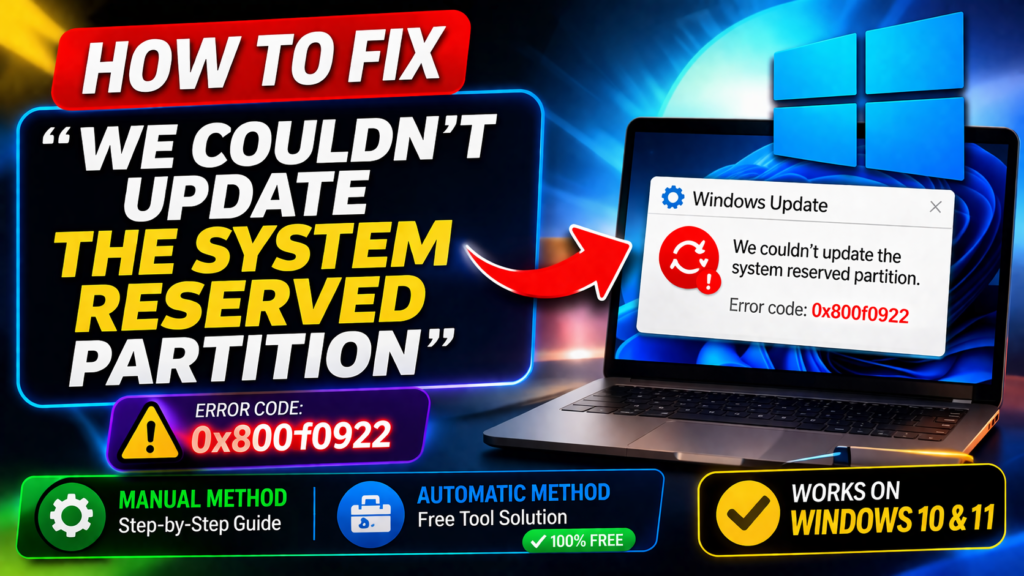
If your Windows 10 or Windows 11 upgrade fails with the error:
“We couldn’t update the system reserved partition.”
you’re not alone. This issue is usually caused by a UEFI/EFI boot partition space problem—the EFI/System Reserved partition often doesn’t have enough free space for the update to complete.
In some cases, you may also see this as Windows Update error 0x800F0922.
In this guide, you’ll learn:
How to fix it manually (DISKPART + EFI cleanup)
How to fix it automatically using the free VMTechs tool (online + offline/WinRE)
✅ Tip: This error is commonly triggered when EFI space fills up due to extra boot fonts and language folders.
Before you start (quick safety checklist)
Suspend BitLocker (if it’s enabled).
Unplug unnecessary external drives.
Keep your BitLocker recovery key available (recommended even if the tool/script asks later).
Use an admin command prompt for manual steps.
Method 1: Manual fix (free space by cleaning EFI boot files)
Step 1: Open Command Prompt as Administrator
Type cmd into search box
Right-click Command Prompt → Run as administrator
Step 2: Use DISKPART to locate EFI/System Reserved Partition:
Run the following commands:
DISKPART
LIST DISK
LIST VOL
If you see an asterisk (*) next to the disk, that typically indicates a GPT layout (common for modern UEFI systems).
Select the EFI/System Reserved volume (replace the number with yours):
Sel Vol <number> Assign Letter=V
Type Exit to close Diskpart tool
Step 3: Delete EFI boot Fonts (safe cleanup)
For GPT/UEFI systems, run:
CD /D V:\EFI\MICROSOFT\BOOT\FONTS
DEL *.*
For MBR systems, use:
CD /D V:\BOOT\FONTS
DEL *.*
Step 4: Remove extra language folders (keep your default language)
Find your default UI language using this prompt:
DISM /ONLINE /GET-INTL
Now go to the Boot folder using this prompt:
CD /D V:\EFI\MICROSOFT\BOOT\ dir
Delete language folders except the default one. Use commands like:
RD /S /Q en-US
Repeat for all other language codes visible in the Boot folder.
Step 5: Retry the upgrade/Windows Update
When done, reboot if needed and try the Windows upgrade again.
✅ If your EFI/System Reserved partition now has enough free space, the error should disappear.
Method 2: Free automatic fix (VMTechs tool – Online + WinRE)
If you’d rather not fight with DISKPART and manual deletes, VMTechs provides a free, scripted repair tool “Auto_fix_for_System_Partition_by_VMTechs.zip file”. You can download it from this link.
It contains two auto script tools:
- Online PowerShell script for use in running Windows:
- Auto_EFI-System_Partition_Fix_by_VMTechs_Online.ps1
- Offline CMD tool for when you’re in WinRE/WinPE (Recovery Environment):
- Auto_EFI-System_Partition_Fix_by_VMTechs_Offline.cmd
- Both scripts are designed to:
- Detect the correct EFI/System Reserved partition on GPT and MBR
- Create and validate a backup of your existing boot files and BCD before changing anything
- Safely clean fonts and language folders to free space
- Attempt safe expansion (extend) of the EFI/System Reserved partition where possible
- As a last resort, format and rebuild boot files, with full confirmation prompts
- Handle BitLocker and WinRE (Windows Recovery Environment) intelligently
Below is what each part actually does in plain language.
2.1 Online PowerShell script – what it does step by step
Right-click the following file in running Windows and select Run with PowerShell:
Auto_EFI-System_Partition_Fix_by_VMTechs_Online.ps1
If “Run with PowerShell” doesn’t work:
Run PowerShell as Administrator and allow scripts using this prompt:
Set-ExecutionPolicy RemoteSigned -Scope CurrentUser
Then run the .ps1 file again.
a) Runs as Administrator and detects Windows mode
The script automatically restarts itself Run As Administrator
b) Detects disk, partition style and system boot partition
Always starts with Disk 0 (where most systems boot from).
Determines if the disk is GPT or MBR:
c) Creates a validated backup of your EFI/System Reserved contents
This is one of the biggest safety features and is often missing from other quick scripts.
Backup folder:
C:\EFI_Repair_Backup (or on your Windows drive if not C:)
Excludes live BCD and BCD.LOG* files from the copy to avoid issues
Verifies backup content:
Confirms that key files exist (e.g., EFI\Microsoft\Boot\BCD or bootmgr).
Checks that the backup payload isn’t suspiciously tiny.
Drops marker files like backup.ok, VALID.tag, and a JSON metadata file.
If a valid backup already exists, you’re even given an option right at the second start.
d) Checks how much free space is needed and what you currently have
The script automatically sets a target minimum free space:
GPT (EFI): at least 100 MB free
MBR (System Reserved): at least 50 MB free
Notice that the update or upgrade issue can be done even with free spaces below these target minimum free spaces.
e) Font cleanup (boot fonts)
To free up space safely, it:
Locates the fonts folder:
GPT: EFI\Microsoft\Boot\Fonts
MBR: Boot\Fonts
Skips the critical wgl4_boot.ttf file
Lists all other .ttf files and asks if you want to delete them
f) Language folder cleanup (boot languages)
Next, it cleans language folders that are safe to remove:
Detects your default Windows system locale (e.g. en-US, fr-FR).
Always protects:
Your default language and en-US
In many real-world systems, fonts + language cleanup alone is enough to fix:
“We couldn’t update the system reserved partition”
Windows Update error 0x800F0922
g) Smart expansion logic (online extend, if layout allows)
If free space is still below target, the script moves into expansion logic:
Analyzes disk layout
Calls Test-OnlineExpansionPossible to check:
Is the EFI/System Reserved the first partition on the disk?
Is there unallocated space directly after it?
How large is that gap (MB)?
Based on that:
If there is adjacent unallocated space, it can:
Offer to extend the EFI/System Reserved into that gap using Resize-Partition.
If there is no gap and the EFI/System Reserved is the first partition:
It tells you online expansion with built-in tools isn’t possible.
Explains that a third‑party partition manager (offline) is needed to move partitions and create space next to EFI/System Reserved.
Then offers the Offline WinRE path or the Last Resort format/rebuild.
If shrinking an adjacent partition is theoretically possible, it:
Finds a shrinkable partition to the right:
Skips other EFI, MSR, Recovery partitions on GPT.
Skips hidden/OEM/Recovery partitions on MBR.
Ensures the candidate partition:
Has a recognized filesystem (NTFS/ReFS/FAT32/exFAT).
Has enough free space to shrink by the required amount.
Optionally assigns a temporary drive letter to that partition.
If you confirm:
Shrinks that adjacent partition to free the required MB.
Re-checks for adjacent unallocated space.
Extends EFI/System Reserved into newly freed space.
If any part of shrink/extend fails or would be unsafe, it:
Clearly explains why.
Offers a Failure Action Menu:
Try Format + Rebuild (last resort, online)
Switch to Offline WinRE method
End script
h) Last resort: format + rebuild boot files (only with backup + confirmations)
If you choose Format + Rebuild:
It first ensures a valid backup exists:
If not, aborts the format step.
Requires you to type:
Y and then literally FORMAT to confirm.
On GPT:
Formats the EFI partition as FAT32.
Runs bcdboot “C:\Windows” /s Z: /f UEFI (drive letters adjusted).
On MBR:
Formats System Reserved as NTFS.
Marks it Active in DiskPart.
Runs bcdboot “C:\Windows” /s Z: /f BIOS.
Optionally refreshes boot code with bootsect /nt60.
If the online format fails because the partition is in use, it offers:
Try rebuild-only without format
Use the Offline WinRE method
Exit
i) BitLocker & WinRE integration (prepare for offline fix)
If the script determines you should switch to Offline WinRE:
It checks and tries to enable WinRE with reagentc /enable if needed.
Checks BitLocker status with manage-bde:
Offers options to:
Suspend BitLocker for 1 reboot
Disable BitLocker (full decrypt)
Suspend + show recovery-key guidance
Skip changes (with warnings)
Can automatically schedule a reboot into WinRE using:
reagentc /boottore
shutdown /r /t 5
You can then run the offline CMD tool from Command Prompt in WinRE.
j) Final cleanup
When the script finishes (success or not), it:
Removes any drive letters it assigned to the EFI/System Reserved partition.
Shows final free-space status.
Tells you to press Enter to exit.
2.2 Offline CMD tool (WinRE) – advanced repair when Windows can’t boot
The offline tool is designed for:
Systems where Windows can’t boot properly
Layouts where online expansion is impossible or risky
Situations where you want to rebuild boot files (or perform last-resort format) from a safe, offline state
File name in the zip (as per your script):
Auto_EFI-System_Partition_Fix_by_VMTechs_Offline.cmd
(Title inside the script: Offline EFI/System Reserved Partition Repair Tool By ValiumMedia Tech YouTube Channel)
You run it from Command Prompt inside WinRE/WinPE.
a) Detects offline Windows, disk and BitLocker state
The script:
Auto-detects the offline Windows volume by scanning drives for:
X:\Windows\System32\Config\SYSTEM (skipping X:)
If it can’t find it, it asks you to enter the drive letter manually (e.g. C:).
Updates internal paths like:
BACKUPROOT = <WinDrive>:\EFI_Repair_Backup
TARGETWIN = <WinDrive>:\Windows
Then:
Checks BitLocker status on that offline Windows volume using manage-bde:
If locked, offers to unlock using the 48‑digit recovery password.
If unlocked, continues.
If unknown, continues but warns that operations may fail.
b) Detects the correct disk and Windows partition
Lists disks with diskpart /s.
Tries to map the Windows volume (e.g. C:) back to the correct Disk number via detail volume.
If auto-detection fails, you can manually pick the disk number.
Locates the Windows partition number by:
Running detail volume on the Windows volume
Parsing which partition number that volume maps to
If that fails, it uses a safe “probe” method to check partitions for \Windows\System32\Config\SYSTEM.
c) Detects partition style and system partition
The script parses list partition output into internal variables:
Partition numbers, types, sizes in KB, offsets in KB.
Then:
GPT (UEFI):
Uses DiskPart’s “System” partition as the EFI/System partition, or lets you select manually.
MBR:
Tries to detect a separate System Reserved partition by:
Skipping the Windows partition and Recovery partitions
Probing each remaining partition for boot files: Boot\BCD, bootmgr, BOOTSECT.BAK, etc.
If found, uses that as the System Reserved.
If boot files clearly live on the Windows partition itself, it flags BOOTONWINDOWS=1.
If it still can’t find a System Reserved, it allows manual selection but blocks:
The Windows partition
Recovery partitions
d) Assigns a drive letter to the system partition (safely)
If your layout has a separate system partition:
Assigns S: to that partition using DiskPart (and records that it did so).
If you have an older MBR system with boot files on the Windows volume:
It reuses the Windows volume letter (does not format that partition in destructive paths).
This matches real‑world cases where older Windows installs don’t have a dedicated 100 MB “System Reserved” at all.
e) Startup backup flow (offline backup & optional restore)
Just like the online script, the offline tool is backup‑first:
Looks for an existing valid backup under:
<WindowsDrive>:\EFI_Repair_Backup
If found:
Shows you the path
Offers:
[1] Restore backup now
[2] Continue without restore
[3] End script
If you choose restore:
Copies boot files back to EFI/System Reserved (or to the Windows volume in the Boot-on-Windows scenario).
Calls the Rebuild Only routine (bcdboot) to regenerate BCD.
If no valid backup exists:
Creates one:
On a separate System Reserved / EFI:
xcopy S:\* → EFI_Repair_Backup\boot_files
On Boot-on-Windows:
Copies relevant boot files and the Boot folder from the Windows volume.
Exports a BCD backup (bcdedit /export).
Writes backup.ok and backup_meta.json.
If backup validation fails, it stops — you must have a valid backup before going into destructive operations like format.
f) Main menu – safe, offline operations
Once backup is sorted, you see a main menu:
Show current disk/partition layout
Attempt direct extend of EFI/System Reserved (adjacent unallocated only)
Guided shrink + extend flow
Rebuild boot files only (no format)
Last resort: format system partition + rebuild boot files
Exit (remove assigned letter)
Key design goal: avoid risky “blind” shrink/move operations with built-in DiskPart. Here’s what each option actually does.
1) Show current disk/partition layout
Runs DiskPart list partition and list volume.
Summarizes:
Which partition is the system partition
Which partition (if any) is immediately to the right
Whether there is any adjacent unallocated gap
Whether the partition is GPT/EFI or MBR/System Reserved
Warns if there’s an MSR/Reserved or Recovery partition immediately after EFI, which blocks built‑in expand.
Drives home the real limitation:
DiskPart in WinRE cannot move partitions, so shrink+extend can’t create space before a partition, only after.
2) Direct extend (very conservative)
On GPT/EFI it refuses direct extend as a safety measure.
On MBR, it only tries a direct extend when:
There is confirmed unallocated space directly to the right.
Boot files are not stored directly on the Windows volume.
Uses DiskPart extend and prints the full DiskPart output.
Reports whether the extend succeeded or failed.
3) Guided shrink + extend (educational, not destructive)
Because DiskPart cannot move partitions, and shrinking a right-hand partition only frees space at its end, the script:
Explains why shrink+extend cannot safely create free space next to EFI/System Reserved.
Refuses to do a risky shrink+extend in this environment.
Recommends a third‑party offline partition editor for true move/resizing.
You can then come back to the Rebuild or Format + Rebuild options afterward if needed.
4) Rebuild boot files only (no format)
This is the go‑to option when:
You suspect boot files are corrupt or missing, but:
You don’t want to format anything.
Or you already created space via a partition manager.
The script:
Ensures the Windows volume is accessible.
For GPT:
Runs: bcdboot “<WindowsPath>” /s S: /f UEFI
For MBR:
Marks the System Reserved partition Active.
Runs: bcdboot “<WindowsPath>” /s S: /f BIOS
If it succeeds, you get:
Fresh boot files
Repaired BCD
No data loss on system or Windows partitions
5) Last resort: format + rebuild (offline)
When everything else fails and your system will not boot, or the EFI/System Reserved partition is hopelessly corrupted, you can use this last resort:
The script will:
Block the option entirely if this is an old MBR layout where boot files live directly on the Windows partition (to avoid formatting your OS).
Require you to type FORMAT as a confirmation.
Require a valid backup (EFI_Repair_Backup) first.
If GPT:
format S: /FS:FAT32 /Q /V:EFI /Y
Then bcdboot “<WindowsPath>” /s S: /f UEFI
If MBR:
format S: /FS:NTFS /Q /V:SystemReserved /Y
Then re‑run bcdboot for BIOS and set the partition active.
After rebuild, it calls EnsureWinREEnabledOffline:
Locates reagentc.exe and bcdedit.exe.
Finds the OS GUID from the BCD.
Locates winre.wim either in System32\Recovery or Recovery\WindowsRE.
Sets WinRE image path and attempts to enable WinRE again offline.
This is designed to give you a fully bootable system plus a working WinRE after a catastrophic EFI/System Reserved failure.
6) Exit & cleanup
On exit, the script:
Removes any temporary drive letters it assigned:
From the system partition (S: if it assigned it).
From other volumes where it temporarily assigned letters.
Leaves the Windows volume’s letter alone.
Prints “Process Finished” and pauses.
Why this automatic tool is safer than a quick one‑liner
In short, the VMTechs EFI/System Reserved repair scripts:
Always try to back up first, and they validate that backup.
Are partition-style aware (GPT vs MBR) and layout aware (EFI first, MSR/Recovery adjacency, Boot-on-Windows cases).
Do not blindly shrink or move partitions with built-in tools that weren’t designed to move partitions.
Only format as an absolute last resort, and:
Only when a backup exists.
Only after explicit multiple confirmations.
Handle BitLocker and WinRE correctly, so you’re less likely to end up locked out or without recovery options.
FAQ
Is this tool safe for both Windows 10 and Windows 11?
Yes. It’s designed specifically for Windows 10 and Windows 11 EFI/System Reserved layouts, on both GPT and MBR disks.
Will it fix error 0x800F0922 as well?
In most cases, yes. That error is often the same underlying issue: not enough free space on the EFI/System Reserved partition during Windows Update or upgrade.
Can I use the automatic tool and still do the manual cleanup later?
Yes. The tool’s cleanup and backup won’t prevent you from running DISKPART or manually inspecting the EFI later. In fact, you can use it to back up + rebuild and then manually resize with a third‑party partition manager offline.
What if the EFI partition is the first partition and there’s no unallocated space after it?
The tool will:
Explain why online expansion isn’t possible.
Suggest using an offline partition editor to move/create free space next to EFI.
Still let you clean fonts/languages and rebuild boot files.
Provide an offline WinRE rebuild path if needed.
Conclusion
If your Windows 10 or Windows 11 system shows:
“We couldn’t update the system reserved partition”
or Windows Update error 0x800F0922
the underlying cause is usually lack of free space in the EFI/System Reserved partition or corrupted boot content.
You now have two solid options:
Manual fix
Assign a letter to EFI/System Reserved with DISKPART.
Delete excess fonts and language folders to free space.
Retry the update.
Automatic fix with VMTechs tool (recommended)
Online PowerShell script:
Safely detects EFI/System Reserved.
Creates and validates a backup.
Cleans fonts + language folders.
Attempts safe expansion where possible.
Falls back to offline WinRE or last-resort format + rebuild when needed.
Offline CMD script:
Works from WinRE/WinPE.
Detects offline Windows, disk, and system partition.
Backs up boot files.
Can rebuild or, as a last resort, format + rebuild and repair WinRE.
After running the online or offline tool, run Windows Update or your Windows 10/11 setup again. In the vast majority of cases, the system reserved partition error and 0x800F0922 will be gone.
You can now paste this updated Method 2 section into your vmtechs.com article, or replace the entire previous topic with this version for a more detailed, search‑optimized, and human‑readable explanation of what your scripts actually do.
VIDEO:
For more details on how to fix the “We couldn’t update the system reserved partition” error in Windows 10 or Windows 11, whether you prefer the manual method or the automatic tool, watch this video:


