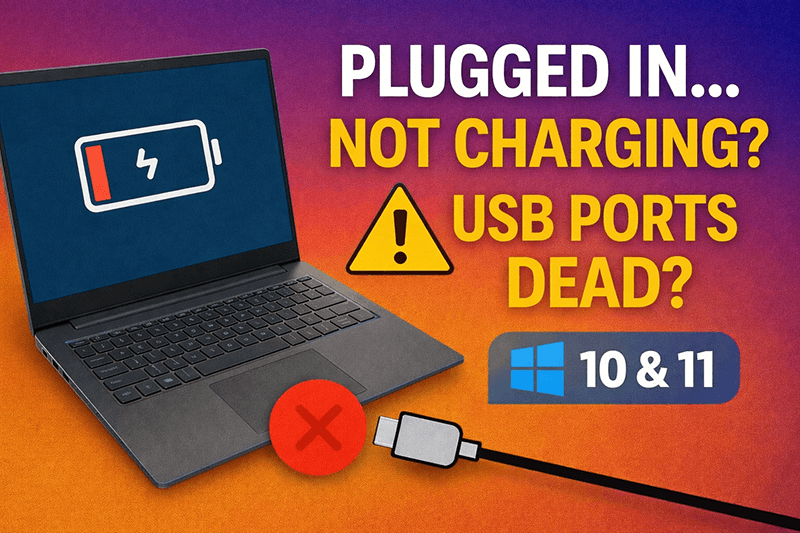
Is your laptop showing “plugged in” but the battery keeps draining?
At the same time, USB-C charging doesn’t work and all USB ports suddenly stop responding?
This issue affects many laptop brands including HP, Dell, Lenovo, ASUS, Acer, MSI, Microsoft Surface, and others—especially on Windows 11 and Windows 10.
In this guide, we’ll start with the simplest checks you should try first, then move step by step toward the most effective fix that resolves this problem for the majority of users.
[📺 Watch the Full Fix Video Here]
🔎 Why This Happens
On some Windows laptops (including HP, Dell, Lenovo, ASUS, Acer), the system may show the USB-C charger as “plugged in” but the battery keeps draining, and none of the USB ports work. A common sign in Device Manager is a broken USB controller entry called UCM-UCSI ACPI Device showing a Code 43 error with a message like:
Windows has stopped this device because it has reported problems (Code 43) (Command: PpmReset)
This usually means the USB controller firmware has crashed, affecting both charging and ports.
🧠 What You’ll Learn in This Guide
- Quick checks you can try first (easy, no risk)
- How to use Device Manager to spot controller errors
- Why the USB controller freeze happens
- Step-by-step major fix that works for most laptops
- Additional troubleshooting for Windows 10 & Windows 11
🔍 Common Symptoms You May Notice
- USB-C charger shows “plugged in” but not charging
- Battery percentage keeps dropping
- All USB ports stop working at the same time
- External keyboard, mouse, flash drive not detected
- USB-C port does not charge phone or accessories
- In Device Manager, you may see:
- UCM-UCSI ACPI Device
- Yellow warning icon
- Error message: Windows has stopped this device because it has reported a problem (Code 43 – Command: PpmReset)
This combination strongly points to a USB controller or power management failure, not a dead battery or bad charger in most cases.
✅ Step 1: Quick Checks (Try These First)
🔌 Confirm USB-C Charger Compatibility
Not all USB-C chargers deliver enough power for laptops.
- Many laptops require 45W, 65W, or higher
- Low-wattage chargers may show plugged in but won’t charge
- Try:
- The original charger
- Another high-wattage USB-C charger
This applies to HP, Dell, Lenovo, ASUS, and most modern laptops.
🔄 Swap USB Devices and Cables
A faulty USB cable or device can block the entire USB controller.
- Disconnect all USB devices
- Try:
- A different cable
- A different flash drive or mouse
- Plug in one device only for testing
🔀 Test Ports on Both Sides of the Laptop
Many laptops use separate USB controllers for different sides.
- Test USB ports on:
- Left side
- Right side
- Rear (if available)
If one side works and the other doesn’t, the issue may be controller-specific.
🧹 Clean the USB-C Port Carefully
Dust or debris can prevent proper power delivery.
- Use:
- Soft brush
- Air blower
- ❌ Avoid metal tools or needles
🪟 Step 2: Windows Checks (Charging + USB Issues)
🧩 Check USB Controller Errors
- Open Device Manager
- Expand Universal Serial Bus controllers
- Look for:
- UCM-UCSI ACPI Device
- Yellow warning icon
If you open it and see:
Code 43 (Command: PpmReset)
This means the USB controller firmware has frozen.
🔁 Restart Windows
A simple restart can sometimes reload the USB controller correctly.
- Restart the laptop normally
- Test charging and USB ports again
🔄 Reinstall USB Drivers
- Open Device Manager
- Right-click each item under USB controllers
- Select Uninstall device
- Restart Windows
Windows will automatically reinstall the drivers.
🔔 Install System Updates (Very Important)
Outdated firmware often causes USB controller failures.
Make sure to install:
- Windows Updates
- Chipset drivers
- USB drivers
- BIOS / UEFI updates
👉 Always download drivers from the official laptop manufacturer website.
⚙️ Step 3: Quick BIOS / UEFI Check
- Restart the laptop
- Hold Shift → click Restart
- Go to:
- Troubleshoot
- Advanced Options
- UEFI Firmware Settings
- Restart
- Enter BIOS / Setup
- Navigate to Advanced or Port Configuration
- Make sure:
- USB ports are enabled
- USB-C power delivery is enabled
If anything was disabled, enable it, save, and restart.
🔥 Step 4: The Major Fix (Works for Most Users)
Embedded Controller Reset (Hard Power Reset)
If USB-C is not charging AND all USB ports stopped working, this is the fix that resolves the issue in most cases.
This reset clears the hardware controller that manages:
- USB ports
- USB-C charging
- Power delivery
- Battery communication
How to Perform the Reset:
- Shut down the laptop completely
- Unplug:
- Charger
- All USB devices
- Press and hold the Power button
- At least 15 seconds
- Some laptops require up to 45 seconds
- Release the button
- Reconnect the charger
- Power on the laptop
After this reset:
- USB ports usually come back
- USB-C charging starts working
- Code 43 error disappears
📌 Related Guides on vmtechs.com
- How to Update BIOS on Laptops & PCs (Step-by-Step) – Helps ensure all firmware is up-to-date.
- Windows 10 Help & Tutorials — https://vmtechs.com/category/computer/windows-10/
- General Computer Troubleshooting — https://vmtechs.com/category/computer/
❗ If the Problem Still Exists
If:
- USB-C still doesn’t charge
- USB ports remain inactive
- Code 43 persists
Then the issue may be:
- A failed USB controller chip
- A damaged motherboard power circuit
In this case, professional repair or motherboard service may be required.
✅ Final Notes
This guide applies to:
- Windows 11
- Windows 10
- HP, Dell, Lenovo, ASUS, Acer, MSI, Surface, and more
Most users recover full USB and charging functionality without replacing any hardware.
🎥 Video Guide
Watch the Full Step-by-Step Fix
This video visually walks you through the checks and the main fix so you can follow along easily.
👉


